
If you have been wondering how to input Hangul into your computer, phone or tablet here is a simple guide for typing Korean letters. First we will give you all the steps you need to properly set up your device to type Korean alphabet and then explain how to type Hangul. The good news is, you don’t really need to buy Hangul keyboard, every suggestion here is a free Korean keyboard.
Check out others in series of articles about typing Korean:
- Windows 10: How to change keyboard language to Korean
- Korean alphabet keyboard stickers
- Touch typing Korean with all ten fingers
- MoAKey the Android touchscreen Korean keyboard
As you already know Hangul is Korean alphabet, but instead of being written sequentially (in a horizontal line one after the other) like Latin letters, Hangul letters are grouped into blocks. How these blocks are formed can be confusing for the person attempting to type in Korean it for the first time. Don’t worry, it is all automatic and easier than you think.
Contents:
- Windows
- How to enable Korean keyboard in Windows
- Typing
- Android
- How to enable Korean keyboard on Android device
- Typing
- iPhone
- How to enable Korean keyboard on iPhone
- Typing
- Virtual Keyboards for typing Korean
- Type Korean using Romanization
1. Windows
How to enable Korean keyboard in Windows
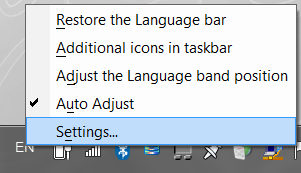
Find the icon on the right side of your taskbar that shows which language you have enabled at the moment. Right click it and choose Settings.
(If you are unable to find it, go to Control Panel -> Region and Language, on the Keyboards and Languages tab, click Change keyboards.)
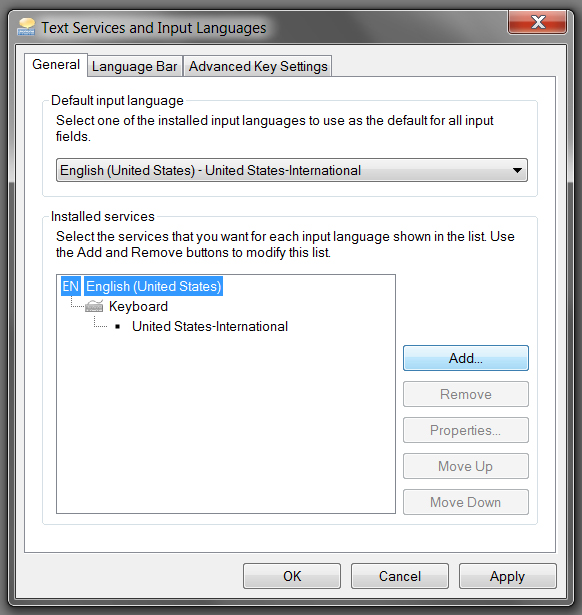
Click the Add… button on the right side.
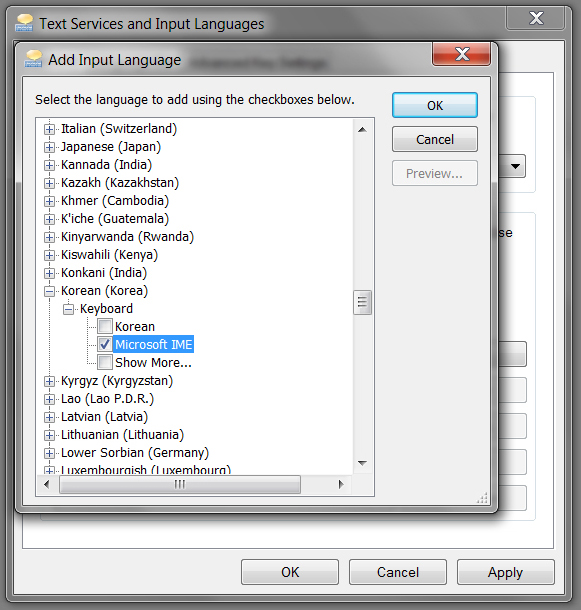
Scroll down to find Korean and check the box for Microsoft IME. Click OK.
Now Korean keyboard has been added to your list.
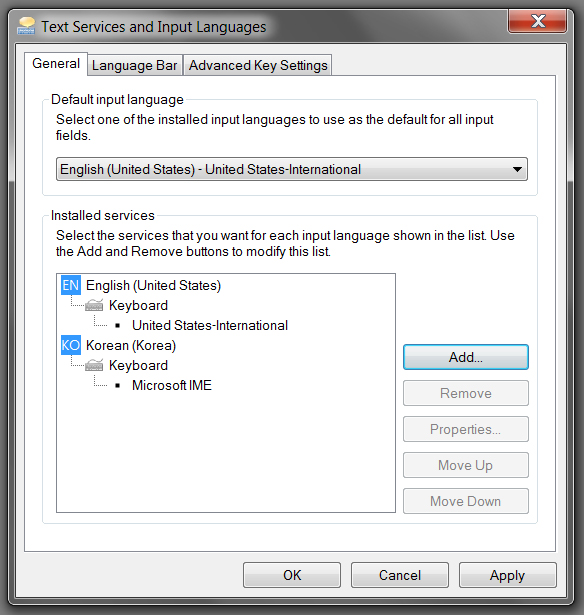
Click OK again.
You can toggle between multiple keyboards by pressing Alt+Shift at the same time. You will see the two letters change to indicate which keyboard is active at the moment. If you press AltGr (right Alt) you will toggle between using Latin alphabet marked by A

or Hangul marked by 가.
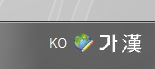
You are ready to type Hangul and impress everyone with your knowledge of Korean!
Typing Hangul using computer keyboard
Let’s say you want to type 사랑해요. Assuming you have keyboard with Latin alphabet you are going to press T -> K -> F

and on your screen 살 will show up. You might think: “But I wantㄹ in the second syllable, not first!”. No worries. As soon as you press K
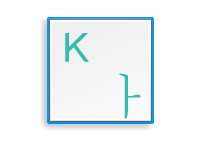
this is going to happen 사라. The “ㄹ” is automatically moved to the next syllable. Computer knows that the combination 살ㅏ is impossible in Korean language so it knows to move the “ㄹ” into the next syllable. Neat, right?
Now just continue D -> G -> O -> D -> Y

And you have 사랑해요!
|
|
 |

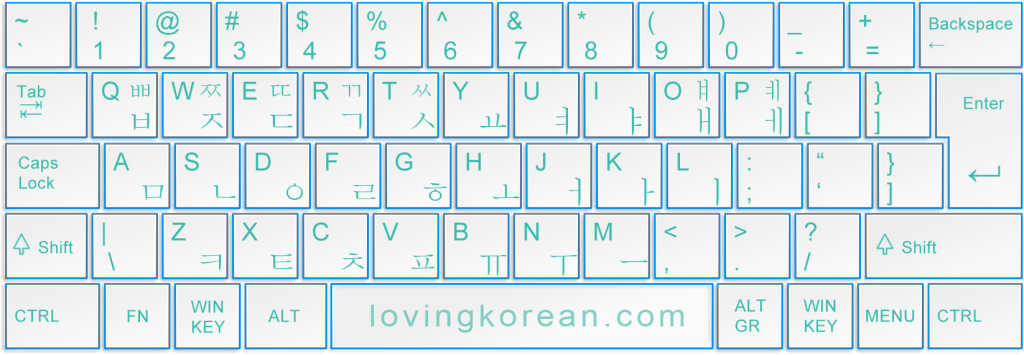
To get double consonants like ㅉ press SHIFT+ㅈ.
Here is a Korean keyboard layout, click on it to see it full size.

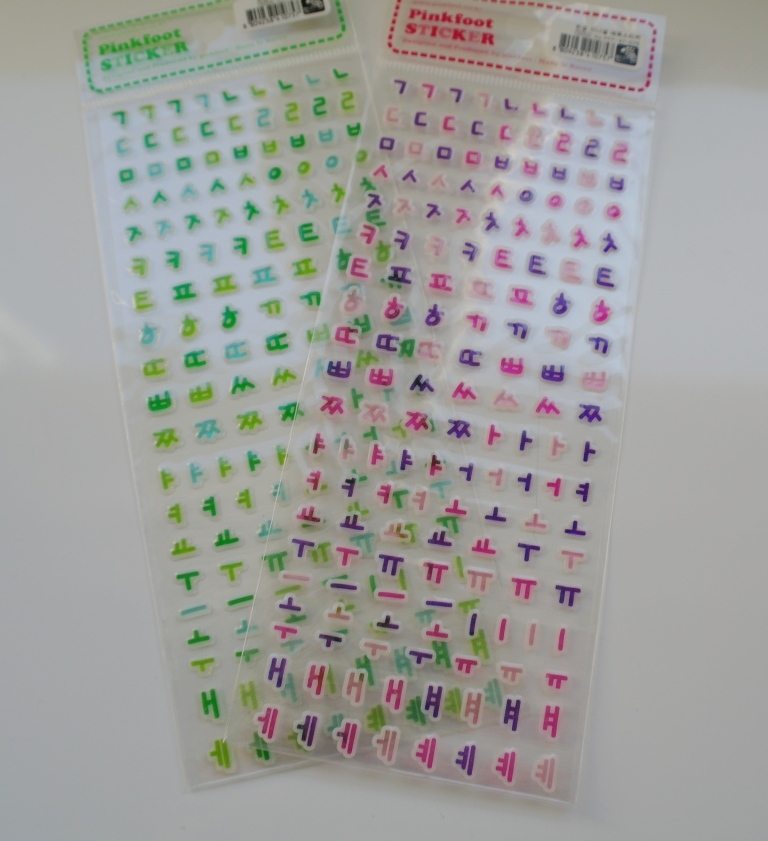
you can save this picture on your computer and use it, or buy cute Korean alphabet keyboard stickers like the ones I got from Korea, and put them on your keyboard so you know where each letter is.
2. Android
How to enable Korean keyboard on Android device
Visit Android Market on your device. Search for “Korean keyboard”. I use Korean Hangul Keyboard (Beta) but you can choose any you like. Note that all the keyboards I came across are not apps but have to be enabled through Settings.

Click Settings, then choose Language & input, then Configure input methods. Select keyboards you installed.

Typing Korean on Android tablet or Android phone
Different keyboards have different input methods but you can find explanations how to use them in the app description. There are usually two main types, those that come with full keyboard like this one:
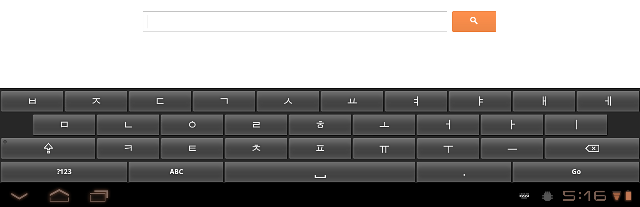
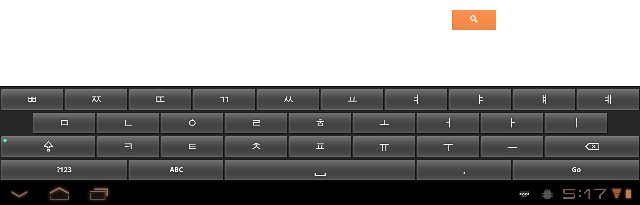
which is convenient for bigger devices like tablets, and those that are more compact like this one:

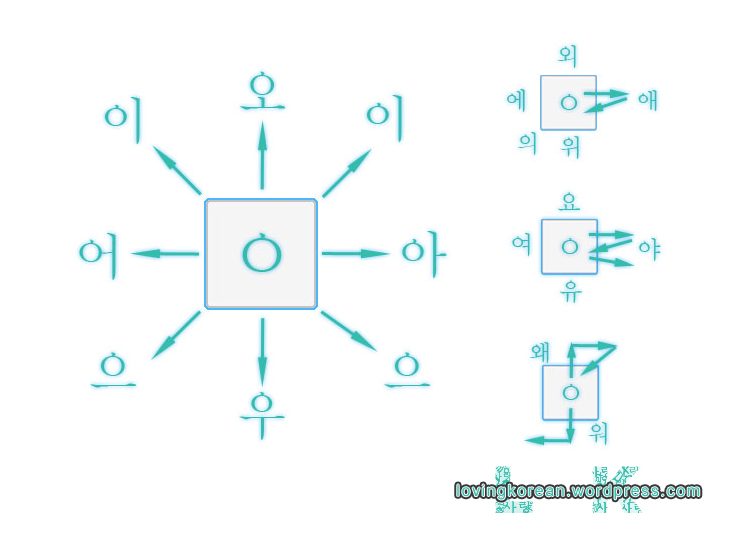
and thus convenient for phones. This particular Android touchscreen keyboard is called Moakey. It has a neat trick to use them. You might notice the vowels are missing on this one. You simply choose the consonant you wish to start the syllable with, and then swipe your finger in different directions to get different consonants. Here is a schematic for getting syllables that start with consonant ㅇ. You put your finger on the key you want and then without lifting your finger move it in the direction of the arrows to get the desired syllable. Click on the link above to see the video tutorial and further instructions.
3. iPhone
How to enable Korean keyboard on iPhone
Choose Settings, then General

Click Keyboard.
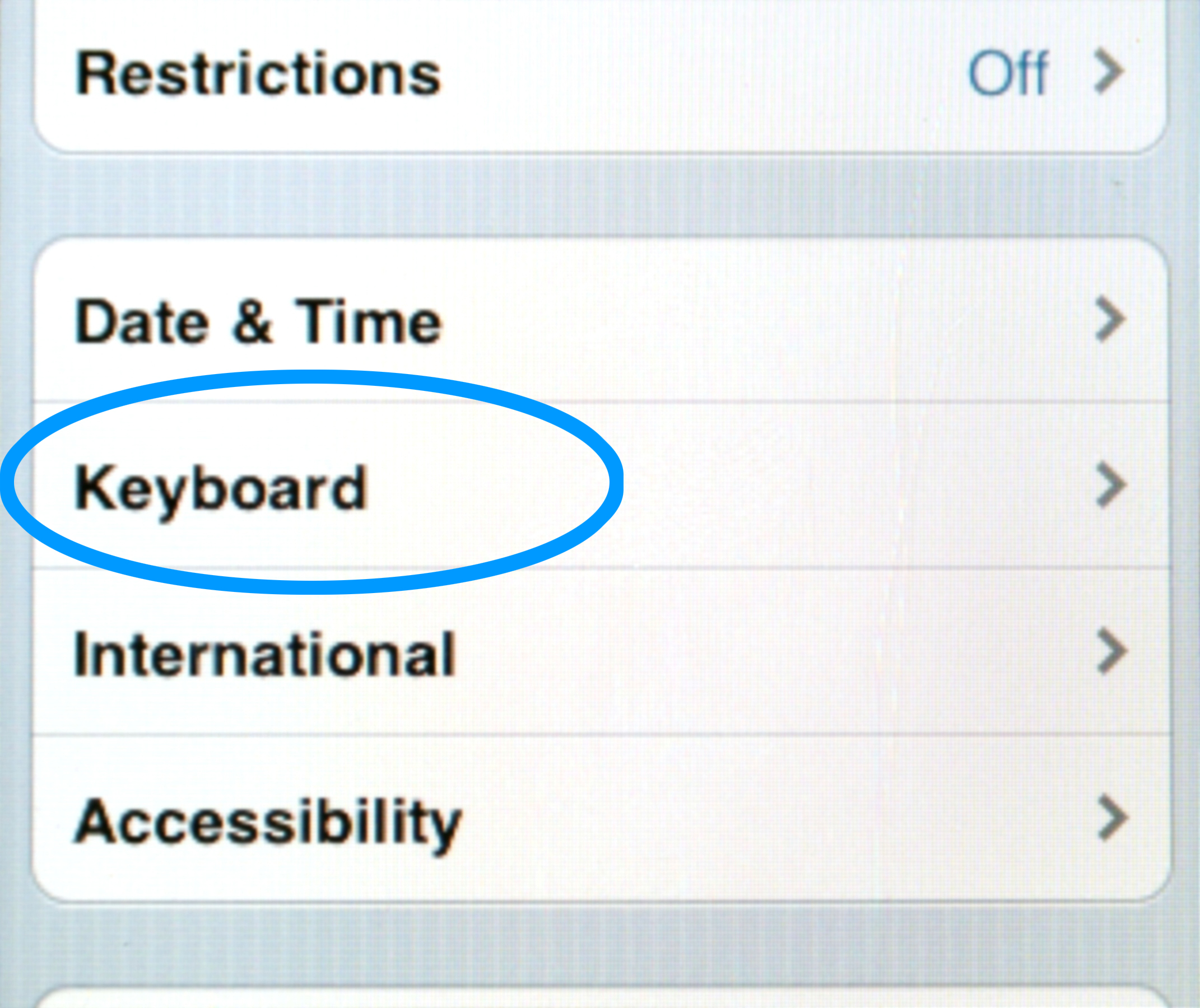
Click International Keyboards.
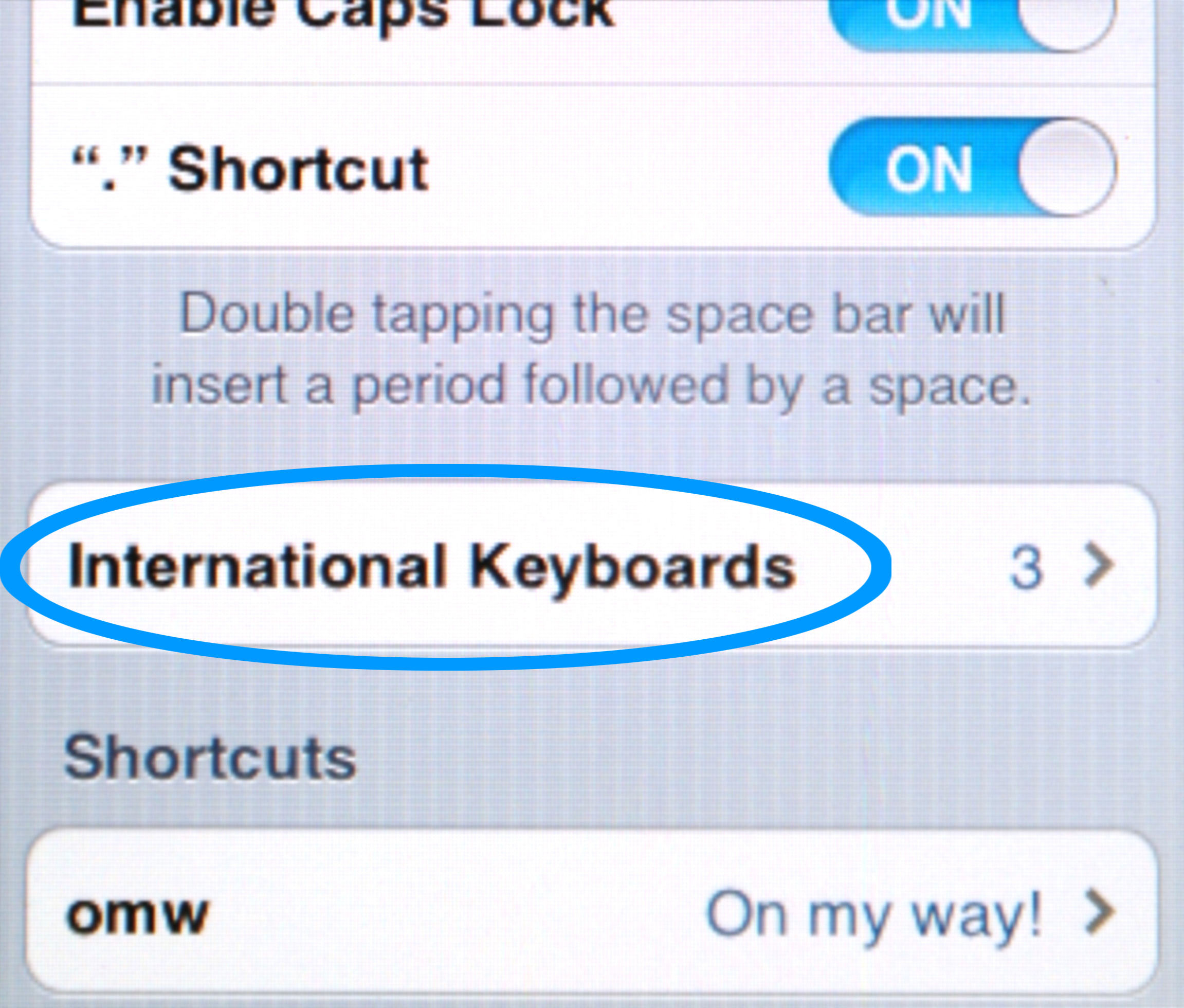
Click Add New Keyboard, and then choose Korean. This is what you keyboard will look like:
Typing Korean on iPhone
All letters are available on this keyboard, press SHIFT (arrow up) for double consonants and globe icon for switching between keyboards. Other than that the typing is the same as if you were using a physical computer keyboard. See the above.

4. Virtual Korean keyboards
Korean virtual keyboard is any online keyboards which you can use with only the help of your web browser. They are convenient if you don’t want to go trough trouble of setting up the keyboard on your device, or you need the keyboard rarely. You simply click with your mouse on the letters you need, one by one. Here are links to some of them:
5. Type Korean using Romanization
If you want to input Korean by only typing Romanization, for example by typing h a n g eu l to get 한글 you can use this website
Check the radio button that says “Revised Romanization” and type away. When you’re finished, copy paste the Hangul text and you’re done.
Even though this way you don’t need to memorize Korean keyboard layout, we still strongly suggest you take your time to do so. It is faster, more proper, and you can type directly without bothering to copy-paste. However, typing Korean using Romanization can be faster in the beginning and can also help you to learn how to properly romanize Korean language.
We hope this will be helpful to you. In case you prefer traditional methods rather than all this technological stuff, check out introduction to Korean calligraphy. If you have any questions or if you would like to recommend a Korean Hangul keyboard that you like to use, feel free write in the comments bellow.
People who like this post also like:
 |
 |
 |
| How to learn Hangul | How to learn Korean | Free Korean apps for texting and calling |





 Loving Korean
Leave a reply to Jessica Cancel reply